📜 Action Logs
The Action Logs feature provides a detailed, chronological record of all significant activities that occur within the iXR Platform. It is a critical tool for auditing, security monitoring, and troubleshooting. Logs are captured at two distinct levels:
- Company-Level – Tracks events that affect the entire organization.
- Project-Level – Tracks events specific to an individual project.
🏢 Company Action Logs
Company Action Logs record events with organization-wide impact, such as changes to company roles, user invitations, or global settings.
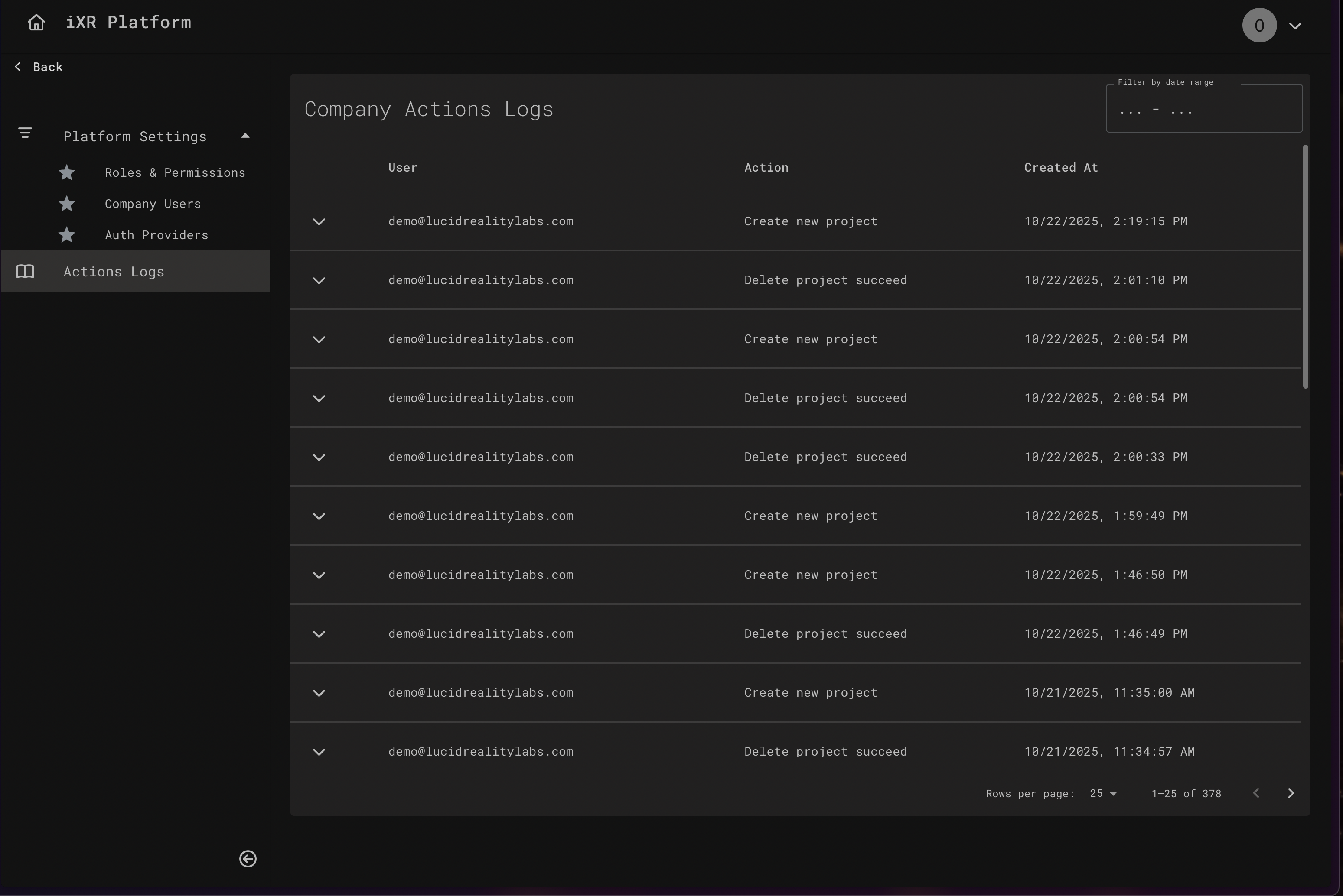
How to Access: Navigate to Platform Settings → Actions Logs.
📑 Page Layout
- Filters – Use the Date Range Picker to narrow down logs to a specific timeframe. The logs are automatically filtered once a start and end date are selected.
- Logs Table – Displays a list of log entries with the following columns:
- User: The company member who performed the action.
- Action: The type of event that occurred (e.g.,
CREATE,UPDATE,DELETE). - Created At: The timestamp when the event was recorded.
- Log Details – Click the arrow on any row to expand it and view the Log Details. This shows the
New ValueandOld Valueof the change, providing a clear before-and-after snapshot. The data is presented in a readable JSON format.
📦 Project Action Logs
Project Action Logs record events that occur within a specific project, such as changes to end user profiles, database entries, or remote configurations.
How to Access: Navigate to Project Manager → Project Actions Logs.
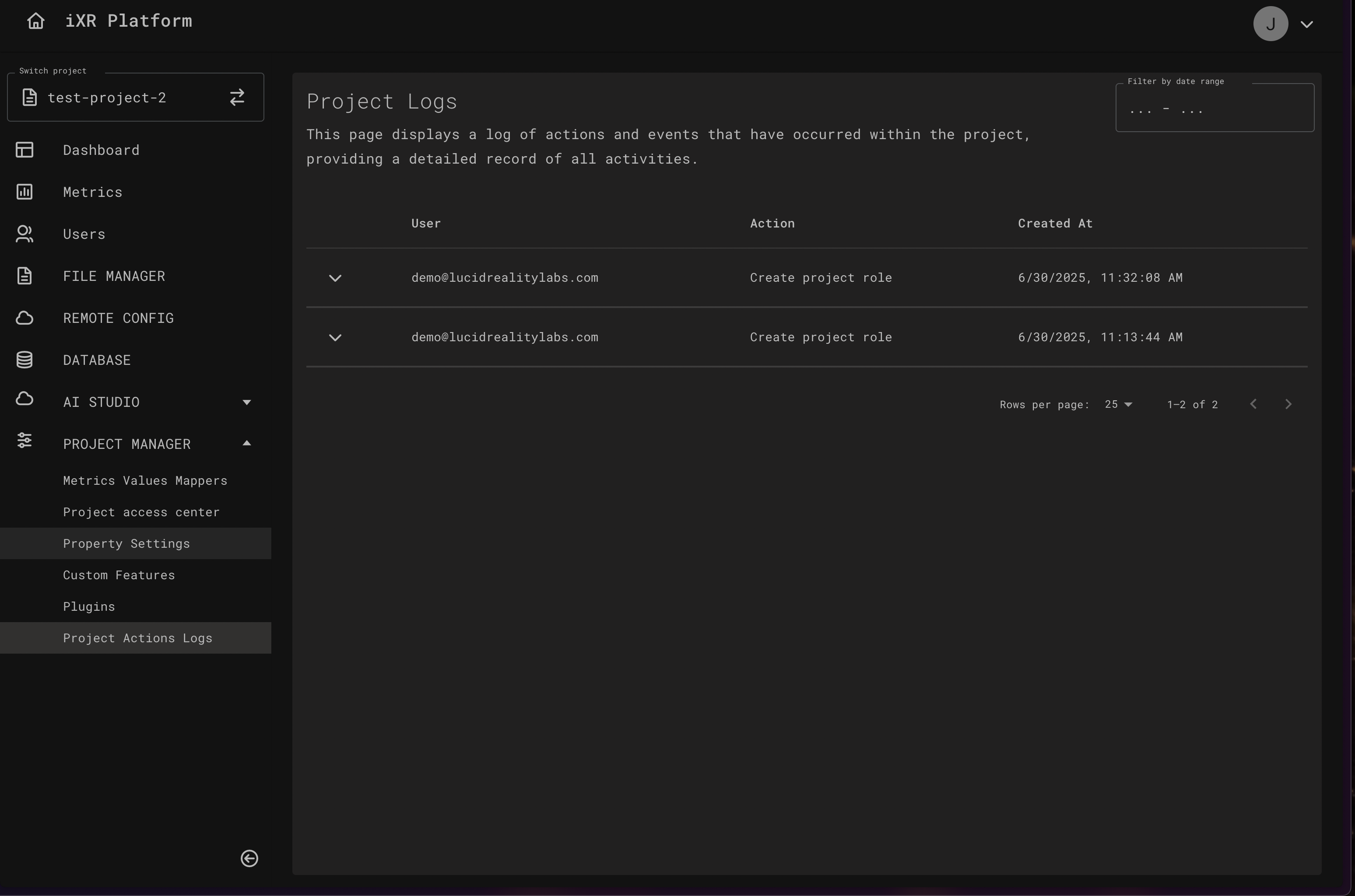
The layout and functionality are identical to the Company Action Logs but are scoped only to the selected project.
🔀 How an Action is Logged
The system automatically creates a log entry whenever a user performs a tracked action.
✅ Best Practices
Periodically review action logs to monitor for unauthorized or suspicious activities. This is a key practice for maintaining security and compliance.
When troubleshooting an issue or investigating an incident, use the date range filter to narrow your search to the relevant timeframe. This will help you pinpoint the exact action and user involved.
Access to Action Logs is a privileged permission. Ensure that only administrators or users with a legitimate need for auditing have access to view these logs.
💡 Business Case
An administrator notices that a critical remote configuration value in a project was changed, causing a feature in their VR application to behave unexpectedly.
- The administrator navigates to the Project Action Logs for the affected project.
- They use the date range filter to narrow the search to the last 24 hours when the issue was first reported.
- They quickly find a log entry with the action
UPDATEfor the remote configuration. - By expanding the log entry, they can see the user who made the change, the exact timestamp, the old value, and the new value.
With this information, they can immediately revert the change and follow up with the team member to understand why the change was made, preventing future issues.