Property Settings
The Property Settings page allows you to extend and customize end user profiles. It consists of two main categories:
- 🧾 Additional Data Fields — Extend end user profiles with extra attributes.
- ⚙️ Settings Fields — Provide configurable options that personalize end user experiences.
Both categories support default values (applied globally) and end user-specific overrides (custom per individual).
Additional Data Fields
Additional Data Fields let you attach extra attributes to end user profiles. They can hold default values and be overridden by end user-specific values.
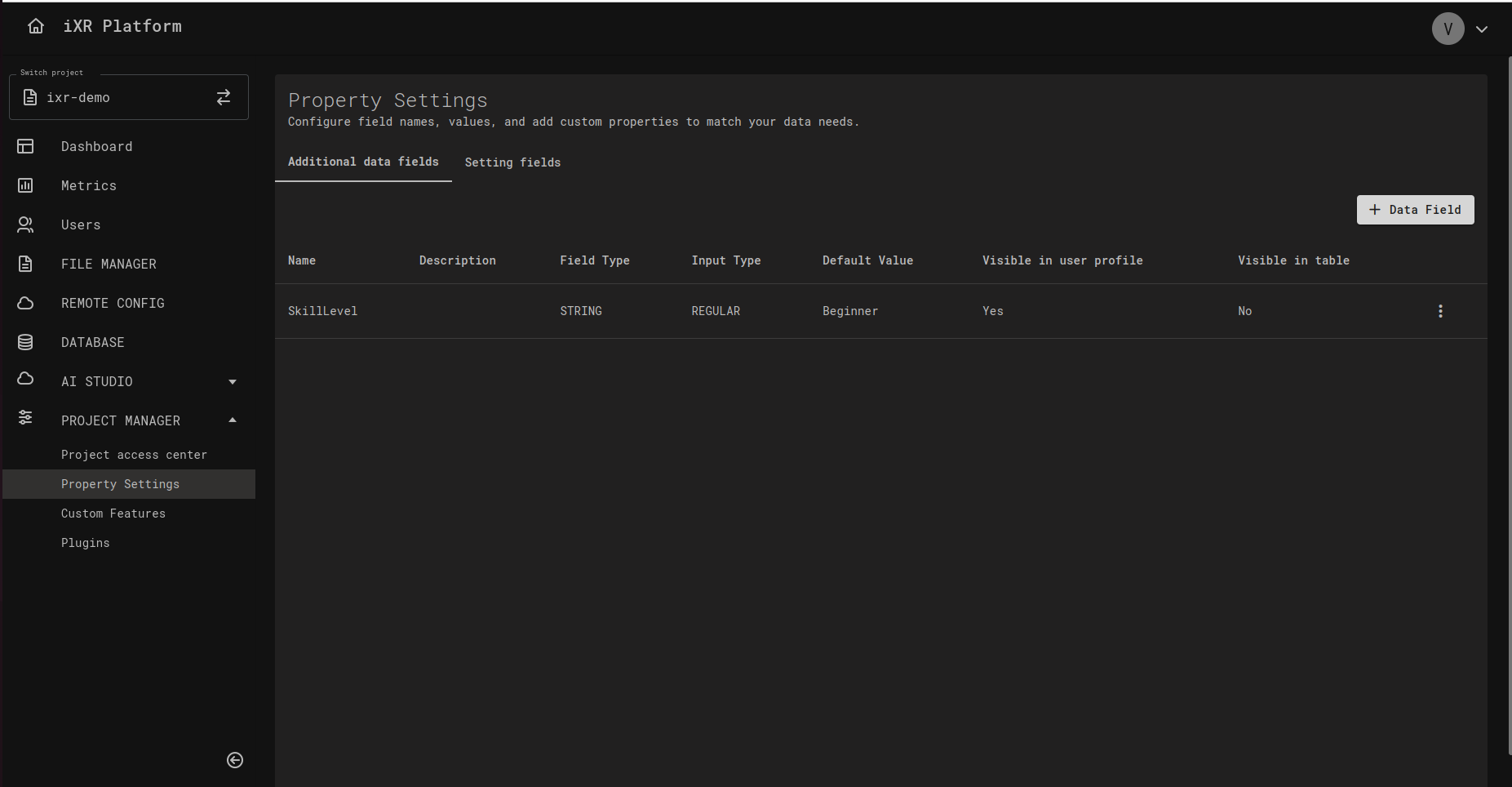
✨ Creating a New Data Field
When creating a new data field, a modal window opens with configuration options:
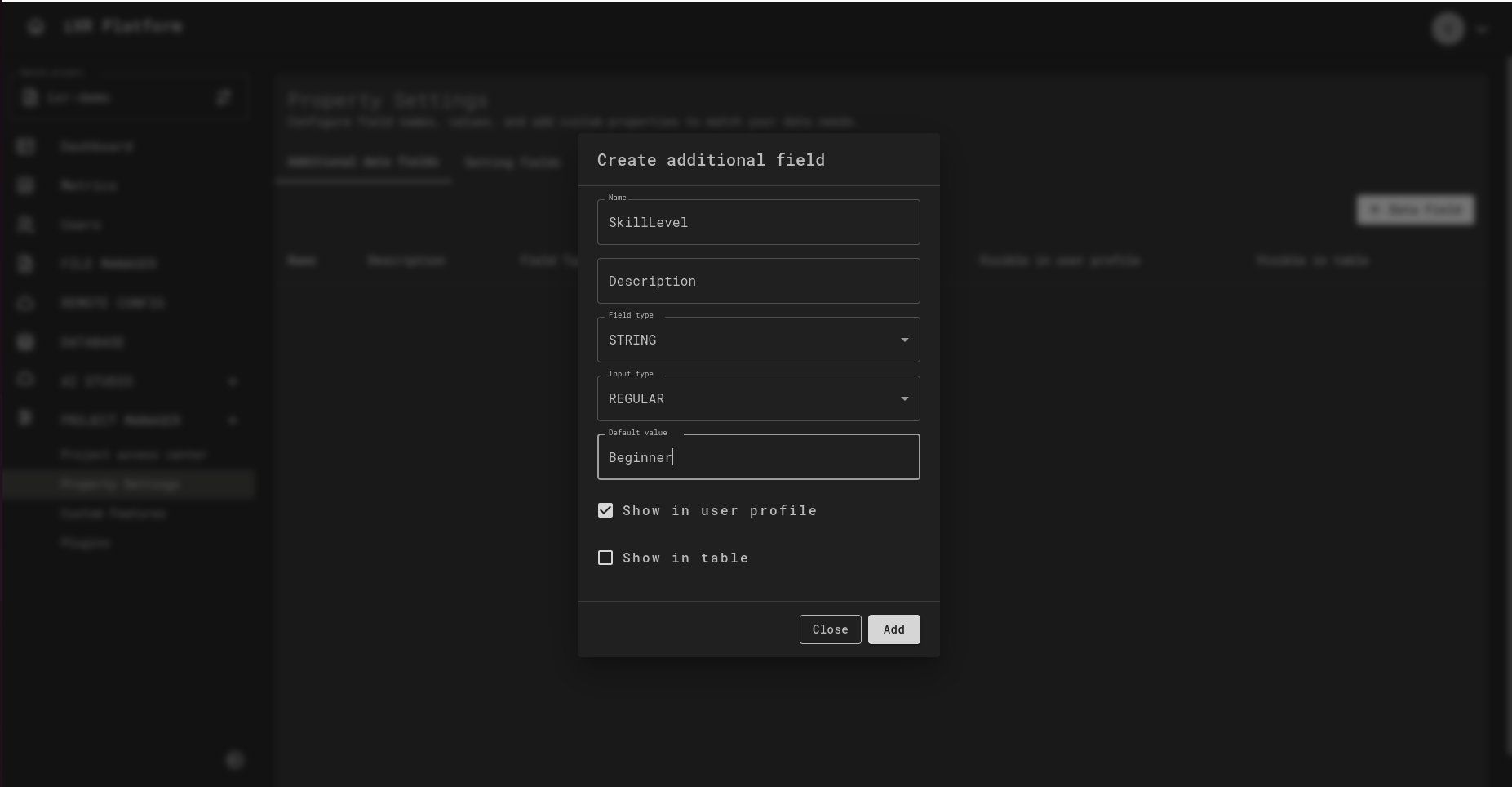
- Name & Description — Unique identifier and optional notes.
- Field Type — STRING, INTEGER, FLOAT, BOOLEAN, JSON.
- Input Type — REGULAR, USE_ALLOWED_VALUES, RANGE.
- Default Value — Used unless overridden.
- Visibility Options — Show in profile or in tables.
- Mandatory — If enabled, this field must be provided for every end user.
⚠️ If USE_ALLOWED_VALUES is enabled, the Default Value must match one of the allowed values.
🔄 Updating Data Fields
Editing a field opens the same modal as creation. You can update all properties, but note:
- Changing defaults does not affect existing overrides.
- Updating allowed values will update dropdowns, but invalid entries remain stored (shown as empty).
If you update an optional field to be mandatory, all existing end users who do not have a value for this field will automatically be assigned its default value. This ensures data consistency across all profiles.
🔗 Data Field Values
Once created, Data Fields appear in the Additional Data section of end user profiles.
- Linking assigns a value to an end user.
- Modifying changes only that user’s value.
⚙️ Settings Fields
Settings Fields provide configuration options to personalize each end user’s experience. Like Data Fields, they support both default values and per-user overrides.
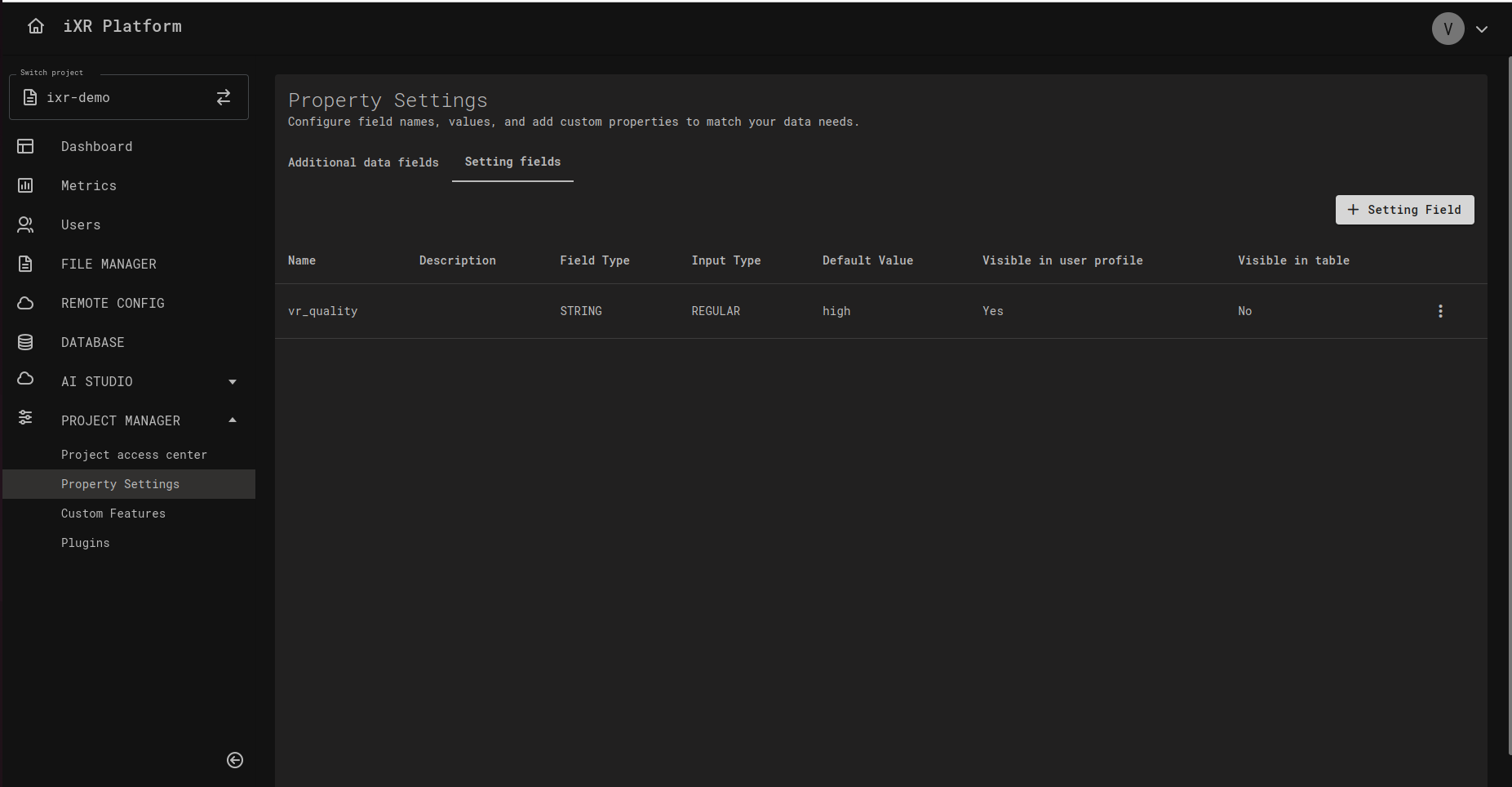
✨ Creating a New Setting
When creating a new setting, a modal window opens with:
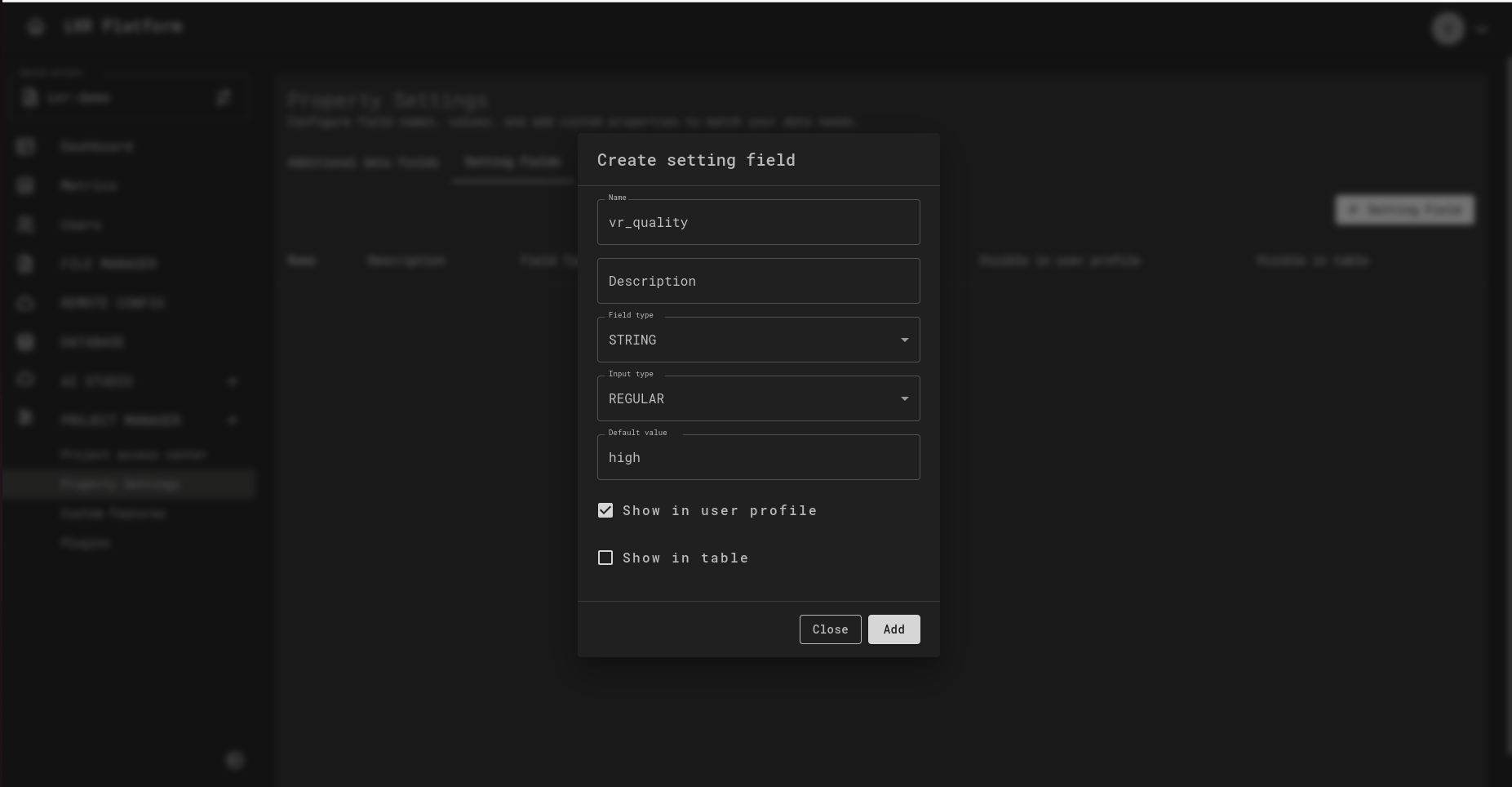
- Name & Description — Unique name (cannot be changed later) and optional notes.
- Field Type — STRING, INTEGER, FLOAT, BOOLEAN, JSON.
- Input Type — REGULAR, USE_ALLOWED_VALUES, RANGE.
- Default Value — Initial value (does not retroactively update overrides).
- Visibility Options — Show in profile or in tables.
🔄 Updating Settings
Editing a setting opens the same modal. All fields can be changed except the Name.
⚠️ Notes:
- Changing defaults does not update overrides.
- Updating allowed values updates dropdowns, but invalid entries remain stored (shown as empty).
🔗 Settings Values
Once created, Settings appear in the Settings section of end user profiles.
- Gray checkbox = default only.
- Linked values = end user-specific overrides.
You can:
- Link — Assign a value to an end user.
- Modify — Change for a single end user.
- Reset — Remove overrides and restore defaults.
✅ Best Practices
Only create fields and settings that provide real business value. Avoid clutter by limiting unnecessary attributes.
Restrict input with allowed values to reduce errors and ensure consistent reporting.
Use default values for most users, and apply overrides only where personalization is necessary. This keeps management simple.
Remember: Changing default values does not affect existing overrides. Plan carefully when updating values to avoid inconsistent data.
Only enable Show in Table for fields and settings that are frequently used for filtering/searching. This prevents clutter in large datasets.
💡 Business Case
Use Additional Data Fields when you want to store static attributes about the end user that describe who they are. Examples:
- Department (HR, IT, Operations)
- Skill Level (Beginner, Intermediate, Advanced)
- Certification Status (Certified / Not Certified)
Benefits:
- Enables filtering and reporting.
- Helps managers track progress.
- No database schema changes needed.
Use Settings Fields when you want to store configurable preferences that affect how the end user interacts with your app. Examples:
- Difficulty Mode (Easy, Medium, Hard)
- UI Language (English, Spanish, French)
- VR Graphics Quality (Low, Medium, High)
Benefits:
- Provides personalized experiences.
- Trainers can adapt sessions easily.
- Quick updates via UI, no code changes required.