👤 End Users
This page provides complete information about end user profiles in your project. You can view, edit, assign, share, or transfer end users depending on your permissions.
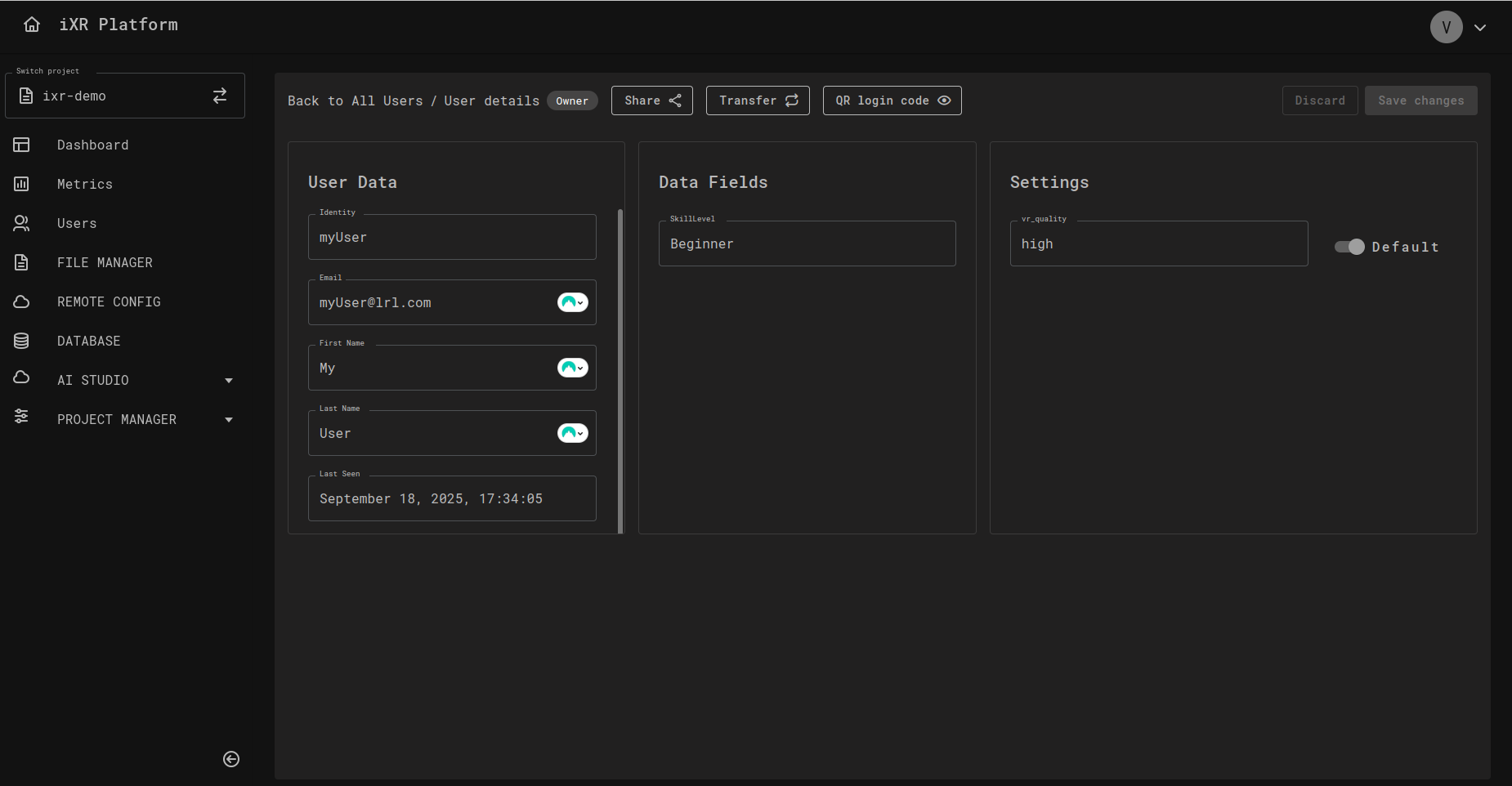
🗂️ Layout and Sections
The End User Profile Page is divided into three main columns:
1️⃣ End User Data
- Shows primary profile information such as:
- Identity (read-only)
- First Name
- Last Name
- Last Updated (read-only)
👉 Only the Identity and Last Updated fields are read-only. All other fields are editable.
2️⃣ Additional Data
- Contains values from any custom or additional end user fields (e.g.,
Profession). - All values in this section are editable.
- Some fields may be mandatory and require a value.
3️⃣ Settings
- Displays values from the end user's settings fields (toggles, selectors, or custom configurations).
- All fields in this section are editable.
🔑 Assign End User to Me
Users with the proper permission can click "Assign user to me".
- This action links the selected end user profile to your account.
- The end user will now appear under My Users, and you can manage them according to your access level.
🔐 End User Access Levels
End users can be assigned different access levels that define what actions are available.
- 👑 Owner
- ✍️ Editor
- 👀 Viewer
- Can preview all sections with fields.
- Can perform an end user Transfer.
- Can Share the end user with other project members.
- Can edit bio fields (e.g., First Name, Last Name).
- Can assign Data Fields.
- Can edit Data Field Values.
- Can assign Settings.
- Can edit Setting Values.
- Can reset a Setting to default.
- Can preview all sections with fields.
- Can edit bio fields (e.g., First Name, Last Name).
- Can assign Data Fields.
- Can edit Data Field Values.
- Can assign Settings.
- Can edit Setting Values.
- Can reset a Setting to default.
- Can preview all sections with fields.
➡️ Share and Transfer
🤝 Share
For Owners with sharing permissions:
- The Share button opens a window displaying available project members.
- You can share access at Viewer or Editor level.
- Useful when you want to allow colleagues to preview or edit an end user's data without transferring ownership.
🔄 Transfer
For Owners with transfer permissions:
- The Transfer button allows you to assign ownership of an end user to another project member.
- After confirmation, the selected user becomes the new Owner, and the previous Owner loses access.
- This is particularly useful if a manager leaves the project or loses access to the platform, so admins can reassign responsibility quickly.
✨ Other Features
- 📱 QR login code – Generate a QR code for quick access. The expiration time for this code can be configured in Features; if no expiration is set, it defaults to 15 minutes. ⚠️ This QR code grants full access to the end user's personal data. Handle it securely.
- 🔐 Login with passcode – Issue a one-time passcode that lets an end user sign in to their VR account. The passcode expires based on the configuration set in Features; if no expiration is set, it defaults to 15 minutes.
- 🔓 Anonymous authentication – Allow client applications (e.g., VR apps) to obtain a JWT token pair without any registration or login, creating a new anonymous end user automatically. Must be enabled via Features. See Anonymous Authentication for full details.
- 💾 Changes can be saved or discarded using the buttons in the upper right.
💡 Business Case
Business case — End User Management in VR Training
Imagine your company runs a VR training platform where employees (end users) participate in interactive learning sessions.
- Assign to Me: A new trainer joins the project and assigns specific end users to themselves, so they can directly manage progress.
- Share: A trainer shares access with another colleague as Viewer so they can monitor performance without editing.
- Transfer: When the original manager leaves the company, the admin transfers ownership of their assigned end users to a new manager, ensuring continuity.
Benefits
- Maintains clear ownership of end user data.
- Enables secure collaboration by defining Viewer/Editor levels.
- Prevents data loss when team members leave or change roles.