👥 Project Members
On this page, you will find complete information about Project Members and a description of the functions for managing them.
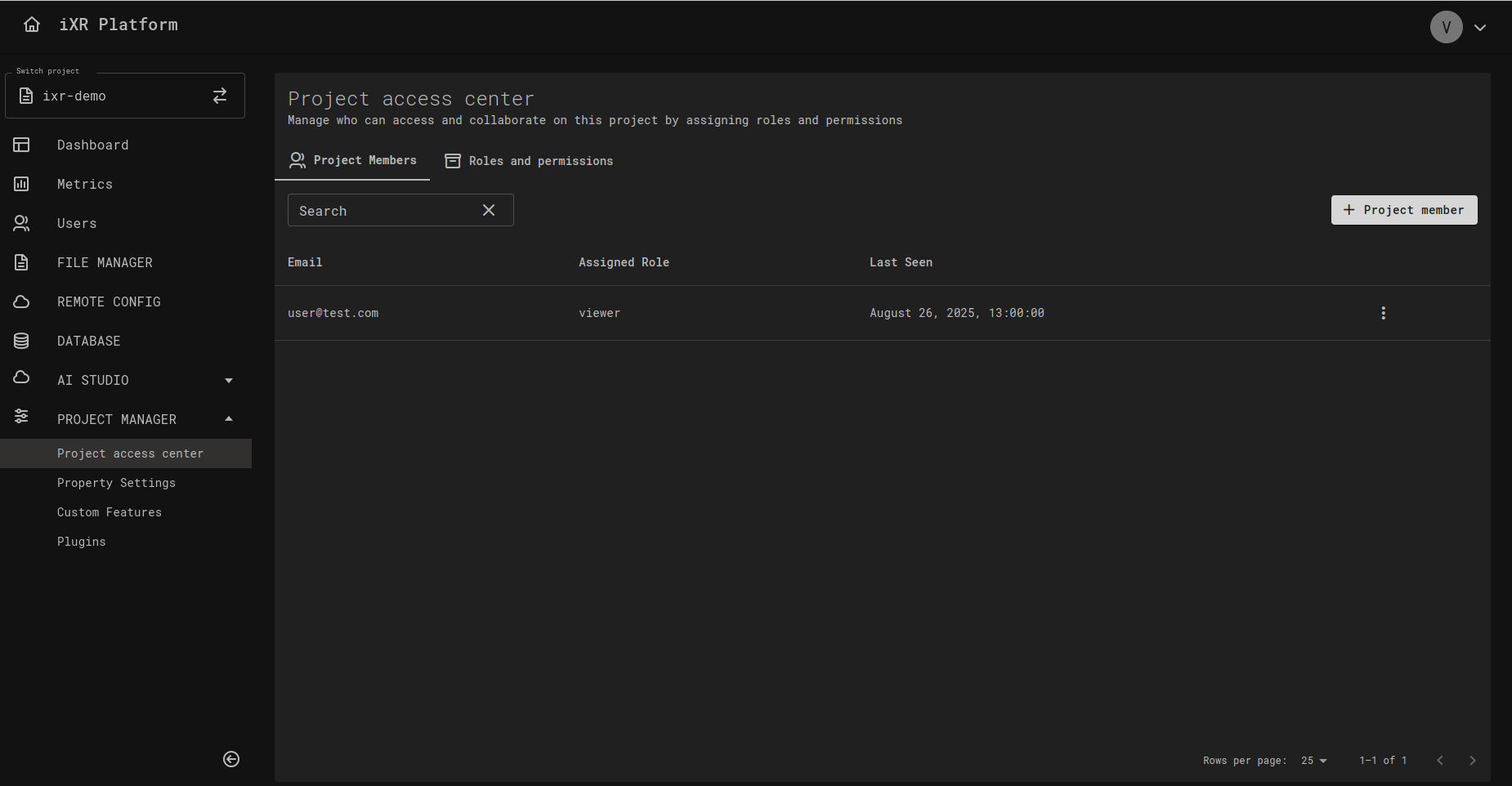
On this tab, you have access to:
- A table with all project members
- The ability to add a new member
- The ability to change their role
- The ability to remove them from the project
➕ Add New Member
By clicking the "+ Project member" button, a window will appear where you can select a user who is already added to the company and assign them a role. After confirmation, the user will be added to the project.
🔄 Change Role
By clicking the role change icon next to a project member, a window will appear where you can select a new project role. After confirmation, the new role will be applied to the selected member.
❌ Delete Member
By clicking the delete member icon, a confirmation window will appear. After confirmation, the member will be removed.
Once deleted, this user can be added again to the project at any time.
💡 Business Case
A freelancer who temporarily worked on content creation has completed their contract. By deleting them from the project, you ensure they no longer have access to sensitive data while keeping the option to re-add them later if needed.